
How to Read Load Test Results
A practical guide to interpreting load test results — what the numbers mean, what patterns to look for, and how to turn data into decisions.
You ran a load test. Now you're staring at a bunch of numbers. What do they mean? What should you do with them?
Reading results is a skill. The numbers tell a story, but you have to know how to read it.
Start with the basics
Every load test gives you a few core metrics:
Total requests — how many requests completed during the test.
Requests per second — throughput. How much work your system did.
Response time distribution — min, average, percentiles (p50, p95, p99), max.
Error rate — what percentage of requests failed.
Status code breakdown — how requests succeeded or failed.
These are your starting point. Everything else is context.
What good looks like
For a load test at expected traffic levels:
Throughput matches or exceeds what you need. If you expect 500 RPS in production and you're hitting 600 in testing, you have headroom.
Latency is acceptable. P95 under 200ms for user-facing APIs is a common target. P99 shouldn't be dramatically higher than p95.
Error rate is near zero. Under 0.1% for normal load tests. Ideally zero.
No degradation over time. Metrics at the end of the test should look like metrics at the beginning.
Red flags
High p99 with low p50 — you have outliers. Something is occasionally very slow. See P95, P99, and why averages lie.
Errors increasing over time — resource exhaustion. Something is leaking or filling up.
Throughput lower than expected — bottleneck somewhere. CPU, database, external service, something is limiting you. The database bottlenecks guide covers one of the most common culprits.
Latency increasing with duration — queue buildup. You're receiving requests faster than you can process them.
Comparing runs
Single test runs have noise. Network hiccups, garbage collection, background processes. Always compare multiple runs.
If results are consistent across runs, you can trust them. If they vary wildly, something's unstable — which is useful information too.
When comparing before/after (like testing an optimization), run the same test multiple times in each state. Look at the distribution, not just single numbers.
The context matters
Results mean different things in different contexts.
Testing against a small database? Your results are optimistic. Production will be slower.
Testing from the same network as your server? Add expected network latency to response times.
Testing with cached data? Your first-request performance might be much worse.
For more on environment setup, see setting up a proper test environment.
Turning results into action
Results look good — document them as your baseline. You'll compare future tests against this.
Throughput is the problem — find the bottleneck. CPU? Database? External calls? Then optimize or scale.
Latency is the problem — look at the distribution. If p99 is bad, find the outliers. If everything is slow, find the slow path. The throughput vs latency tradeoff explains why these metrics are connected.
Errors are the problem — check the status codes. 5xx means server issues. Timeouts mean overload or stuck requests. 4xx might mean test configuration issues. The error rates under load guide helps you decode what different error patterns mean.
Reading Zoyla results
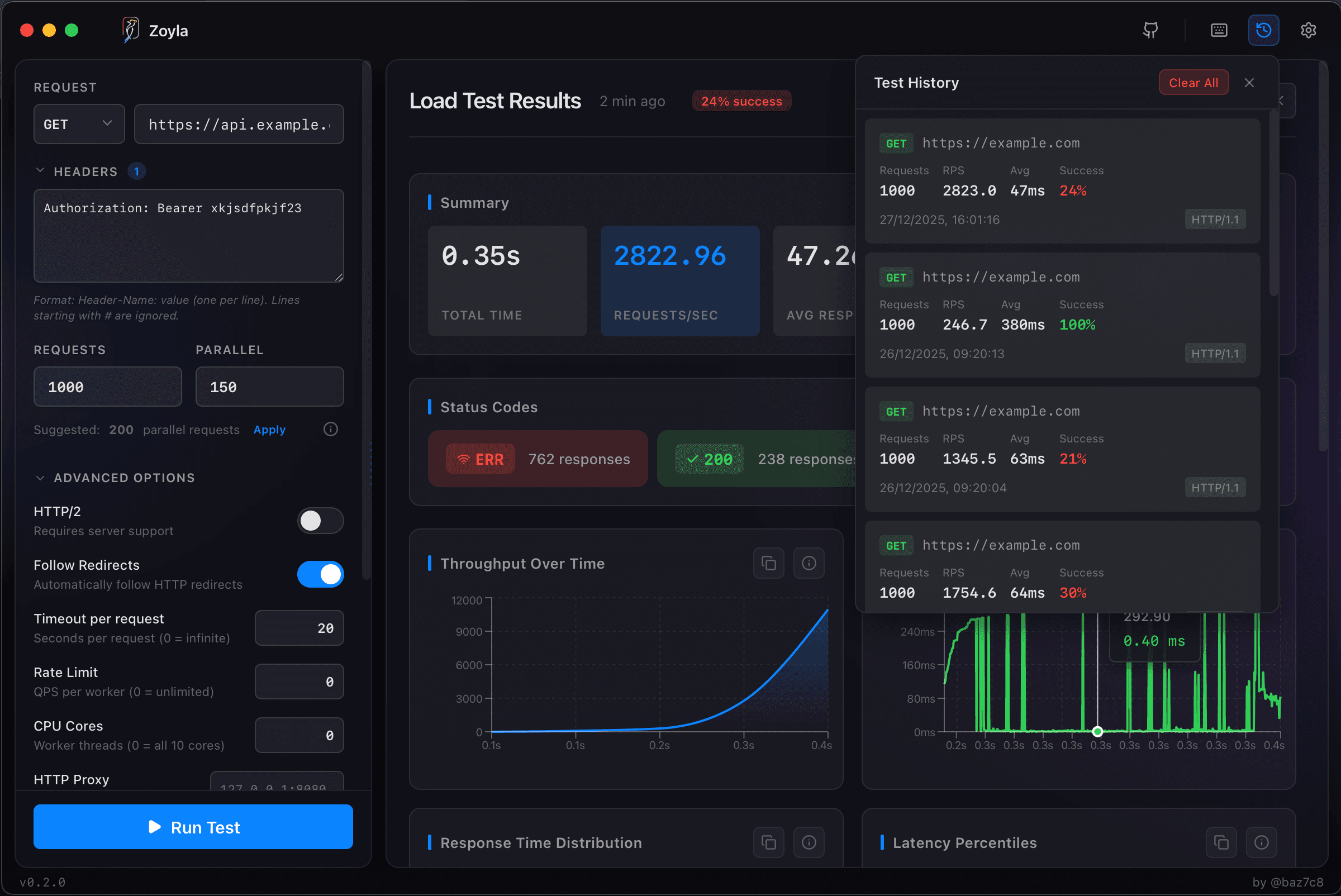
Zoyla shows you the key metrics in a visual dashboard. Response time distribution as a chart. Throughput over time. Error breakdown by status code.
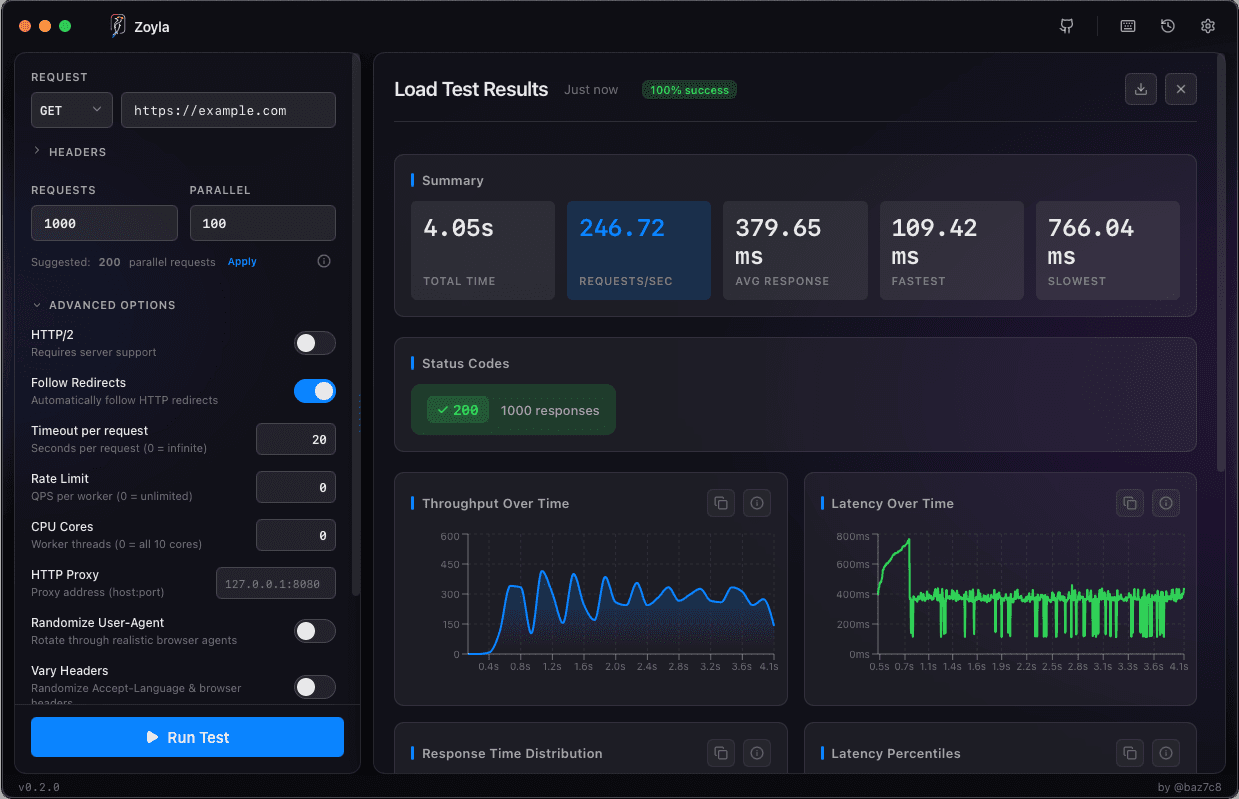
The visual format helps you spot patterns quickly. A latency chart that stays flat is healthy. One that curves upward shows degradation. One that spikes shows a breaking point.
You can run multiple tests and compare them side by side. This makes before/after comparisons straightforward.
The iterative process
Load testing isn't one-and-done. You test, find issues, fix them, test again.
Each test teaches you something. Maybe your database needs an index. Maybe your connection pool is too small. Maybe that external API is slower than you thought.
Fix one thing, test again, see if it helped. Repeat until results meet your requirements.
For more on building this into your workflow, check out making load testing part of your workflow. And for a complete overview of all the metrics Zoyla measures, see the metrics that matter.